Filtering
Filters are the primary way to narrow the log view. They are layered: include patterns narrow the view, and exclude patterns hide matching lines on top of whatever include filters already selected.
Quick Keys
| Key | Action |
|---|---|
i | Add include filter (show only matching lines) |
o | Add exclude filter (hide matching lines) |
f | Open filter manager |
F | Toggle all filtering on/off |
H | Toggle highlight mode (see below) |
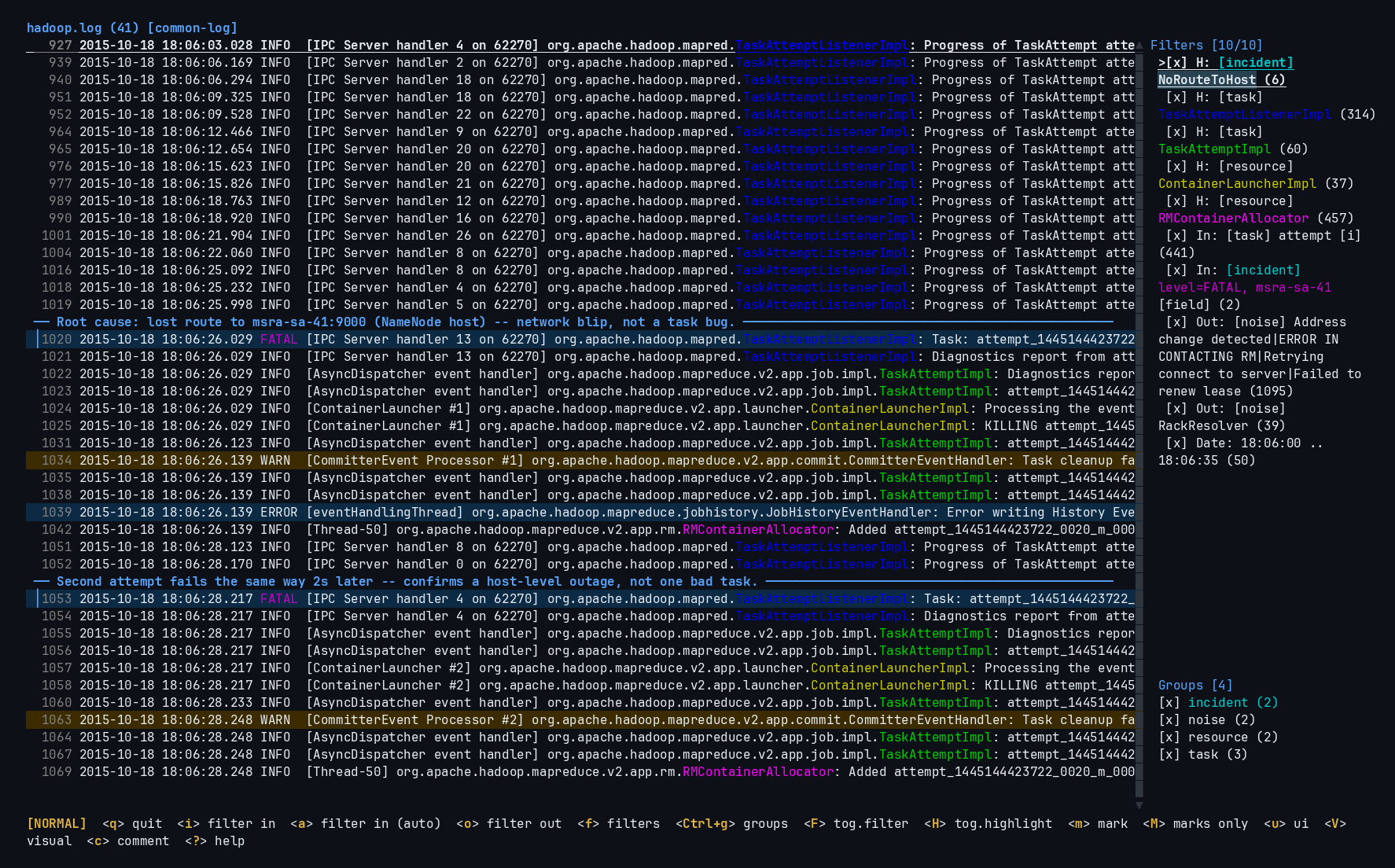
Filters mix freely — this session (loaded from a real production incident log) combines a date-range filter, two exclude filters, a plain text include, a field filter combined with free text, and five highlight filters — one per component, so each service class gets its own color as you read through the log. Related filters share a group — noise, task, resource, incident — so a whole category can be toggled or reordered together:
How Filters Work
Include filters: If any include filter is enabled, only lines matching at least one include filter are shown.
Exclude filters: Any line matching an enabled exclude filter is hidden — except when a plain text/regex include filter earlier in the filter list already matched the same line first. Text and regex filters are evaluated top to bottom in the order they were added; the first match (Include or Exclude) wins. In the filter manager, K/J move a filter up/down the list, so putting an exclude above a conflicting include makes it win. Field-scoped exclude filters are the exception — they’re unconditional and always hide a matching line regardless of order.
Highlight filters: Apply their color styling to matching lines but never affect visibility — every line stays shown. See Text Filters for details.
No filters: All lines are shown.
All filter types support:
- Text search — fast multi-pattern matching
- Regular expressions — full regex syntax, opt-in with
--regex/-r - Case-insensitive matching — opt-in with
--ignore-case/-i
Highlight Mode
Press H in normal mode to put all active filters — include, exclude, and highlight — into highlight mode: every line in the file stays visible, but filter colors still render on their matches. This is for reading the full context around the lines you actually care about — an include/exclude filter narrows the log down to just the matches, but the surrounding lines that explain why something happened are often not in the filter at all. Highlight mode gives you the whole log back, with your filters still marking what matters, so you can scroll through real context without losing track of what you were looking for. The sidebar title shows [HIGHLIGHT] while it’s active. Press H again to return to normal filtering.
Filter Persistence
Filters are saved to SQLite and automatically restored the next time you open the same file. When you reopen a file, logana detects whether the file has changed (via hash) and prompts you to restore the previous session.
Filter Manager
Press f to open the filter manager popup, which lists all active filters. Navigation matches the log panel: count-prefixed motions, page scrolling, jump-to-top/bottom, and search. A filter row can also be double-clicked directly in the sidebar (without opening the filter manager first) to toggle it.
| Key | Action |
|---|---|
j / k | Move selection down / up — accepts a count prefix, e.g. 4j moves down 4 |
Ctrl+d / Ctrl+u | Half page down / up |
PageDown / PageUp | Full page down / up |
gg / G | Jump to the first / last filter — {count}gg or {count}G jumps to filter N |
/ | Search the filter list (see below) |
Space | Toggle selected filter on/off |
e | Edit selected filter’s pattern |
d | Delete selected filter |
c | Set highlight color for selected filter |
t | Add a date/time range filter |
h | Add a highlight filter |
J / K | Move filter down / up (order affects priority) |
A | Toggle all filters on/off |
C | Clear all filters |
Esc | Close filter manager |
Searching the Filter List
Press / to start typing a search query — the sidebar title immediately shows a type to search... placeholder so it’s clear you’re now typing a query, even before you’ve entered any characters. The query is matched as a regex (case-insensitive) against each filter’s type, pattern, and group, e.g. error|warn narrows to filters whose row text contains either word; an invalid/incomplete regex (likely while still typing, e.g. an unclosed () falls back to a plain substring match instead of matching nothing. Backspace edits the query; j/k move between the narrowed matches. Enter confirms your selection and shows the full list again; Esc cancels and restores whatever was selected before you started searching. While searching, every key is captured as query text — including letters that are normally shortcuts (e, d, i, …) — so none of the usual filter-manager actions fire until you confirm or cancel.
Filter Colors
Each filter can have an optional highlight color. When a filter matches part of a line, that part is colored using the filter’s configured color. Colors are set per-filter with c in the filter manager, or via the :set-color command.
:set-color --fg red
:set-color --fg "#FF5555" --bg "#282A36"
Color values accept:
- Named colors:
black,red,green,yellow,blue,magenta,cyan,white,gray,darkgray,lightred,lightgreen,lightyellow,lightblue,lightmagenta,lightcyan - Hex:
"#RRGGBB"
Style composition
When multiple filters overlap on the same text segment, their fg and bg attributes are composed independently — the highest-priority filter that has fg set contributes the foreground color, and the highest-priority filter that has bg set contributes the background color. So a level filter that sets --fg yellow and a text filter that sets --bg darkgray on the same word will both apply without one canceling the other.
Color priority
Filter colors take priority over automatic value colors (HTTP methods, status codes, IPs, UUIDs) and log-level colors. Value colors are applied only to spans that are not already covered by a filter — they can still appear alongside filter colors on the same line, just not on the same character span. Log-level colors are the lowest-priority fallback and apply only to text that carries no explicit color from any other source.
Filter Groups
Assign filters to a named group to manage several of them together:
:filter --group errors ERROR
:filter --group errors -r "FATAL|CRITICAL"
:exclude --group noise debug
--group/-g <name> works on :filter, :exclude, and :highlight. Toggle every filter in a group on/off together:
:toggle-group errors
A group can also have its own predefined color, used by any filter in the group that doesn’t set its own --fg/--bg:
:group errors --fg Red
:group errors --fg Red --bg Black -l
:group errors --auto        # random readable fg/bg pair
:group errors --clear       # remove the group's style
:group errors                # register the group with no style yet
Groups Sidebar
A Groups section at the bottom of the filter sidebar lists every group with its filter count and style — toggle it on/off from the UI options menu (u → g). Each row shows a [x]/[ ]/[-] status matching the filter list (all enabled / all disabled / mixed). Click a row to select it, double-click to toggle every filter in that group.
Press Ctrl+g in normal mode to enter group management, scoped to the selected group:
| Key | Action |
|---|---|
j / k | Select next / previous group |
Space / A | Toggle every filter in the group on/off |
e | Edit the group’s color style |
x | Clear the group’s color style |
a | Add a new group |
Esc | Exit |
Save and Load Filters
Export the current filter set to a JSON file, and reload it later:
:save-filters my-filters.json
:load-filters my-filters.json
This is useful for sharing filter sets across machines or between log files with similar structure.
File Format
A filter file is a JSON object with a filters array and an optional groups array:
{
  "filters": [
    {
      "id": 0,
      "pattern": "error",
      "filter_type": "Include",
      "enabled": true,
      "color_config": { "fg": "Red", "match_only": true },
      "use_regex": false,
      "ignore_case": true,
      "group": "errors"
    },
    {
      "id": 0,
      "pattern": "debug",
      "filter_type": "Exclude",
      "enabled": true
    },
    {
      "id": 0,
      "pattern": "@field:level:WARN",
      "filter_type": "Highlight",
      "enabled": true,
      "color_config": { "bg": "#282A36", "match_only": false }
    },
    {
      "id": 0,
      "pattern": "@date:> 2024-02-21",
      "filter_type": "Include",
      "enabled": true
    }
  ],
  "groups": [
    { "name": "errors", "color_config": { "fg": "Red" } }
  ]
}
Each entry in filters:
| Field | Type | Required | Notes |
|---|---|---|---|
id | number | yes | Ignored on load — filters are re-assigned real IDs when imported. Any placeholder value (e.g. 0) works. |
pattern | string | yes | The match text. For field or date filters, this is a special encoded string — see below. |
filter_type | string | yes | One of "Include", "Exclude", "Highlight" (see How Filters Work). |
enabled | boolean | yes | Whether the filter is active. |
color_config | object | no | Highlight color, omit for none — see below. |
use_regex | boolean | no | Treat pattern as a regex. Defaults to false. |
ignore_case | boolean | no | Case-insensitive matching. Defaults to false. Has no effect on field filters. |
group | string | no | Group name, for toggling several filters together — see Filter Groups. |
color_config, when present:
| Field | Type | Required | Notes |
|---|---|---|---|
fg | string | no | Foreground color. |
bg | string | no | Background color. |
match_only | boolean | no | true (default) highlights only the matched text; false highlights the whole line. |
fg/bg in a hand-written filter file only accept ratatui’s 16 built-in color names (Black, Red, Green, Yellow, Blue, Magenta, Cyan, Gray, DarkGray, LightRed, LightGreen, LightYellow, LightBlue, LightMagenta, LightCyan, White) or "#RRGGBB" hex — not the extended names (orange, pink, purple, …) that --fg/--bg accept on the command line. Colors set via :set-color/--fg/--bg are always saved back out as one of these two forms, so a file produced by :save-filters never needs the extended names either way.
Each entry in groups:
| Field | Type | Required | Notes |
|---|---|---|---|
name | string | yes | Group name, matched against filters’ group field. |
color_config | object | no | Same shape as above — the group’s fallback style. |
enabled | boolean | no | true (default) if the group’s toggle state should start on. |
A bare array of filter objects ([{...}, {...}], with no groups) is also accepted, for files saved before group support was added.
Field and date filter patterns
A plain text/regex filter’s pattern is just the search text. A field filter (see Field Filters) instead stores @field:<key>:<value> — for example @field:level:ERROR matches :filter --field level=ERROR. A date filter (see Date & Time Filters) stores @date:<expression>, using the exact same expression syntax as :date-filter — for example @date:> 2024-02-21 or @date:09:00 .. 17:00.
Only single-condition field filters round-trip through this simple @field:key:value form. Field filters combining several --field conditions and/or trailing free text use an internal encoding not meant to be hand-written — create those in the TUI or with :filter --field ... and use :save-filters to export them instead.
Inline Filters at Startup
Add filters directly on the command line without creating a JSON file first:
| Flag | Short | Purpose |
|---|---|---|
--include <args> | -i | Add include filter |
--exclude <args> | -o | Add exclude filter |
--timestamp <args> | -t | Add date/time range filter |
The argument string passed to each flag accepts exactly the same options as the corresponding TUI command (:filter, :exclude, :date-filter):
# Simple pattern
logana app.log -i error -o debug

# Field-scoped filter
logana app.log -i "--field level=ERROR"

# Include filter with highlight color (flags before pattern)
logana app.log -i "--bg red error"

# Case-insensitive include filter (the outer -i is --include; the inner
# --ignore-case is the :filter flag documented in Text Filters)
logana app.log -i "--ignore-case error"

# Date range filter
logana app.log -t "> 2024-02-21"

# Combined
logana app.log -i error -o debug -t "01:00 .. 02:00"
All flags can be repeated. Inline filters are applied after any --filters file. Invalid argument strings are rejected before the TUI opens.
Preloading Filters at Startup
Pass --filters (or -f) on the command line to apply a saved filter set before the TUI opens:
logana app.log --filters my-filters.json
The filters are evaluated in a single pass during file indexing, so the filtered view is ready as soon as loading completes — no separate computation step. The same filters remain active for interactive use once the TUI is open (you can add, remove, or edit them normally).
Combined with --tail, the last matching line is shown immediately after loading:
logana app.log --filters errors.json --tail
Tip: Save your most-used filter sets with
:save-filtersonce, then reuse them from the command line.
Sections
- Text Filters — include/exclude patterns, regex syntax
- Date & Time Filters — timestamp-based range and comparison filters
- Field Filters — match against specific parsed fields (level, message, component, …)